Skip to book content
eBooks.com eBooks.com

Your eBooks,
beautifully read.

A modern, accessible online reader for your eBooks.com library — fast on every device, customisable to the way you read, and built around the formats you already own.

Sign in to your eBooks.com library
Explore the Reader Try it with The Moonstone by Wilkie Collins. No sign-in required.
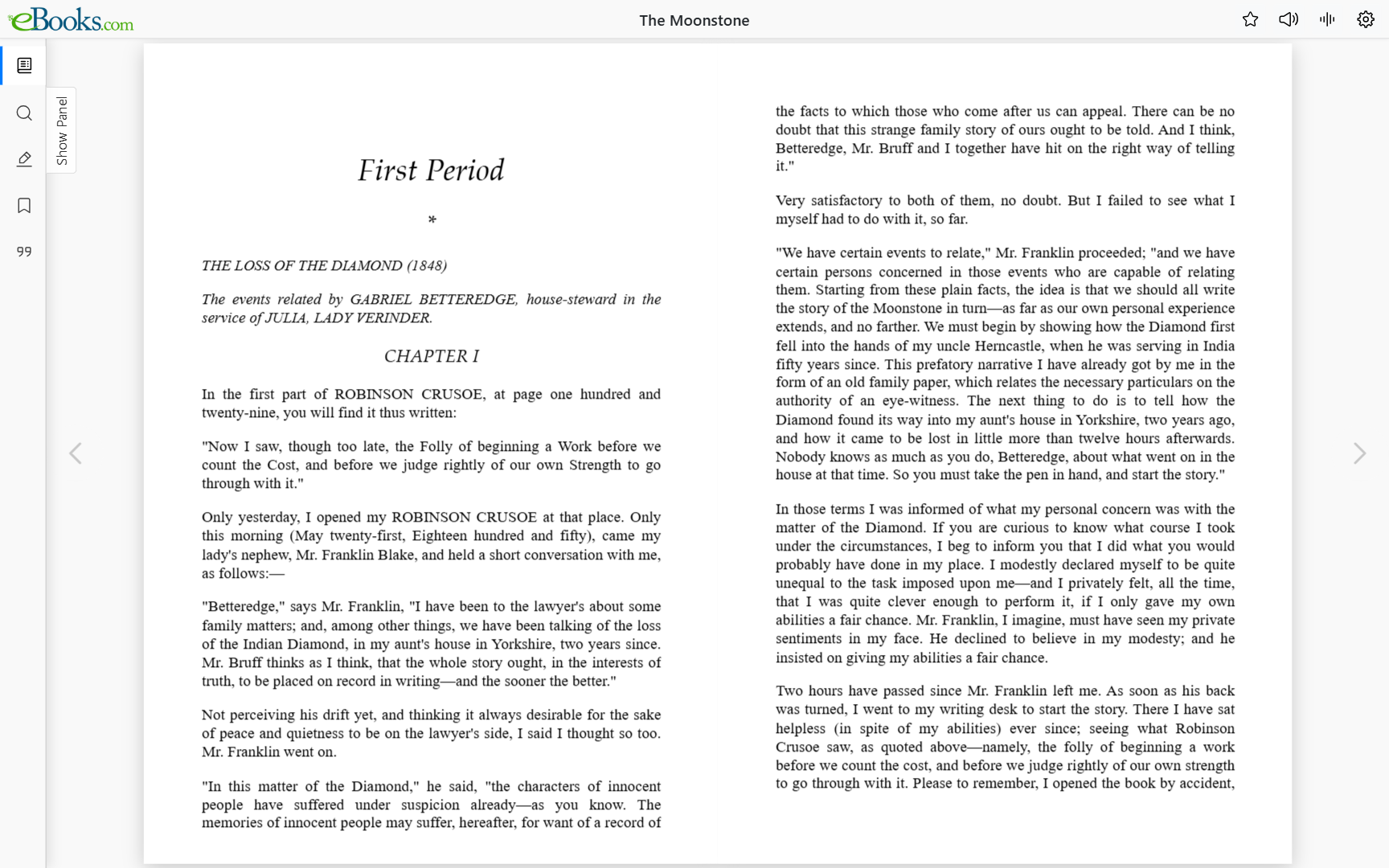
The eBooks.com Online Reader showing The Moonstone in a two-page spread.

Responsive on every screen

Phone, tablet, laptop, or a wide desktop monitor — the reader reflows your book to fit comfortably, with paginated, two-page, or continuous-scroll views you can switch on a tap.


Accessible by design

Full keyboard navigation, screen-reader friendly markup, an OpenDyslexic font option, and configurable line spacing, letter spacing, and margins for low-vision readers.

Make it yours

Choose from five embedded fonts, three themes (light, soft, dark), adjustable font size and reading area — your preferences sync across your devices.

Read aloud

Built-in Text-to-Speech with adjustable speed and voice, plus synchronised highlighting so you can follow along as the book is read to you.

Available where the publisher has enabled it.

Bookmarks & highlights

Save your place, mark passages in four colours, jot notes, and jump back instantly from a unified annotations panel — all stored against your account.

Cite-ready

One-click citations in nine academic styles — APA, MLA, Chicago, Harvard and more — using publisher page numbers when available and chapter + paragraph references when not.

eBooks.com eBooks.com
Logo Logo

Loading title...

PREVIEW

Table of Contents


We're preparing your book for the reader. The table of contents will appear here once it's ready.

Search this book


Highlights / Notes


Bookmarks


Table of Contents

Search this book

TTS Settings

Skip during Read Aloud
1.0
1.0
Loading...

Copy / Print Mode

Help

Move through the book and reach common actions without taking your hands off the keyboard.

Gestures and on-screen controls for reading on a phone or tablet.

  • Swipe left or right to turn pages (in Scroll Book view, scroll instead).
  • Pinch to zoom (if supported).
  • Use the bottom panel to jump, search, or adjust settings.

The reader is built with keyboard navigation and screen readers in mind. A few tips to get the most out of it.

Navigate through the book using keyboard arrows. Use / or Ctrl/Cmd+F to search, Ctrl/Cmd+Alt+R to activate Read Aloud, and Esc to close open panels.


Using a screen reader (JAWS, NVDA, VoiceOver)?
Open the View Mode picker (Ctrl/Cmd+Alt+V) and choose Continuous Scroll. In paginated modes the screen reader reaches the end of the current page and stops; in Continuous Scroll the entire chapter is one document, so a single Say All reads straight through without per-page clicks.


Enable a screen reader on your device

  • Windows: Ctrl + Win + Enter to launch Narrator
  • Mac: Cmd + F5 to toggle VoiceOver
  • Android: Triple-press the power button (TalkBack)
  • iOS: Triple-press the side or home button (VoiceOver)

Once enabled, use Tab to navigate. The book reader starts at the region marked Book content.

Step-by-step walkthroughs for every feature in the reader.

Open the Online Reader User Guide

Run into a problem or have feedback? Open a ticket and our team will get back to you.

Open a support ticket

Display settings

Display adjustments are limited for PDF files.

Having trouble with small text?
Switch to Scroll Book view (stretch-to-fit enabled) .

For EPUB, we’ll override publisher fonts to apply your choice.
Theme
Applies to the app interface and EPUB content only.
Text alignment
Show visible page numbers in the text. Lines up with citation page numbers for books without publisher pagination.
You appear to be on an eInk device.
Switching on eInk mode sharpens contrast and stops ghost trails caused by animations. Tick the box below to enable it.
Disables animations and increases contrast. Recommended on eInk devices (Onyx Boox, Kindle, Kobo, reMarkable, PocketBook).
Experimental. These presets apply additional CSS to the rendered book and may not work as expected on every title. Most options apply instantly; the drop-cap option briefly reloads the reader — you'll land back at your current page.
Tames overflowing images, floats, and fixed widths that fight reflow. Helpful for books that look broken in our reader compared to other apps.
Adds line-height, paragraph spacing, hyphenation, and a modest heading hierarchy. Useful when publisher CSS is sparse.
On by default. Forces the page background and text to honour your theme when it's dark or soft, even on books that hard-code light colours (the typical "dark mode doesn't work on this book" symptom). Preserves the book's own colours inside the text — boxes, tables, code, and coloured type. Has no effect in light mode.
For stubborn books where dark/soft mode still looks broken after "Force theme colours". Also strips colours from in-content boxes, tables, code, and coloured text so everything follows your theme. Can flatten intentional colour — turn on only when a book needs it.

On by default. Turn off to render chapter openings without our drop-cap styling.
Reloading to apply…

Select View Mode

Enjoyed the book?

How did you find this book?

When you’re ready, hit the star () anytime to rate or review this book.

Your review helps other readers discover great books.

Write a Review

Looking for your next great read?

Shop more books on eBooks.com

Welcome to eBooks.com Online Reader beta

Welcome to our new Online Reader beta

This version is still being developed and may not yet include all the features available in our legacy reader. However, it brings a range of improvements designed to enhance your reading experience — especially on mobile devices.

  • Fully responsive design for phones, tablets, and desktops
  • Support for dark mode and visual customization
  • Built-in Read Aloud (Text-to-Speech)
  • Improved accessibility for screen readers and keyboard navigation

Feel free to explore on your own, or take a short guided tour to get familiar.

Change Zoom Level

Note: Zoom level applies only to the currently visible page and will reset when you navigate to a new page or section.

Adjust reading area

Move right to give the page more of the screen. The far-right position uses all the available reading area.

Cite this page/book

Enjoying the preview?

You’re halfway through the sample. Get the full book to keep reading.
Buy & read the full book

Add Notes to Selection

Bookmarks

What would you like to do?

Session Ended

Your reading session has ended—either due to expiration or because it was accessed from another browser or device.

Switch Format

You’re about to switch to the version of this book in the online reader. Would you like to continue?

My library